


.png)


Transcript
A Guide to AI Powered IAM Workflows (Q1 2026)
Identity and Access Management (IAM) in a lot of organizations has become a patchwork of manual processes and reactive firefighting. New hires often wait days for accounts to be provisioned across dozens of apps. Privileged accounts accumulate unchecked, creating hidden security risks. Access requests pile up in inboxes and ticket queues, while dormant ghost accounts linger unnoticed.
It’s a recipe for friction, security gaps, and compliance headaches. Our AI native automation platform is changing that by analyzing identity data and orchestrating changes in the background.
By 2026, AI-driven IAM has evolved from static scripting to autonomous identity orchestration. In this post, we detail five high-impact workflows—ranging from JML automation to drift detection—that enforce Zero Trust principles and reduce Mean Time to Remediate (MTTR) for security teams.
1. Joiner/Mover/Leaver (JML) Access Automation
Onboarding, role changes, and offboarding are foundational IAM events, yet many companies still handle them with manual ticketing and spreadsheets. A new hire might require accounts in Okta or Azure AD, email, Slack, Jira, GitHub, Salesforce, and more, and each app often needs a separate manual setup. If someone transfers to a new team, they may retain old access they no longer need (leading to permission creep), or miss new access required for their role.
Worst of all, when an employee leaves, IT might disable their core account but forget lingering logins to SaaS apps, creating orphaned accounts that attackers can exploit. The result is not only productivity delays but also security risks from over provisioning and forgotten access.
This AI powered workflow automates the entire user lifecycle across systems. It uses the HR system (HRIS) as the source of truth to trigger changes the moment someone joins, moves, or leaves. You simply maintain your HR records, and the AI agent takes it from there, provisioning new accounts and group memberships when a user is onboarded, updating roles when they transfer, and revoking access across all apps when they depart.
The AI agent synchronizes with the HRIS (e.g., Workday, BambooHR) to ingest user context, ensures the account is updated in the identity provider (Okta or Microsoft Entra ID), and automatically provisions accounts via SCIM 2.0 or group access in all the connected applications. If the user is leaving, it fully disables or removes their accounts in Google Workspace, O365, Slack, Jira, GitHub, Salesforce, and any other integrated system.
Workflow Steps
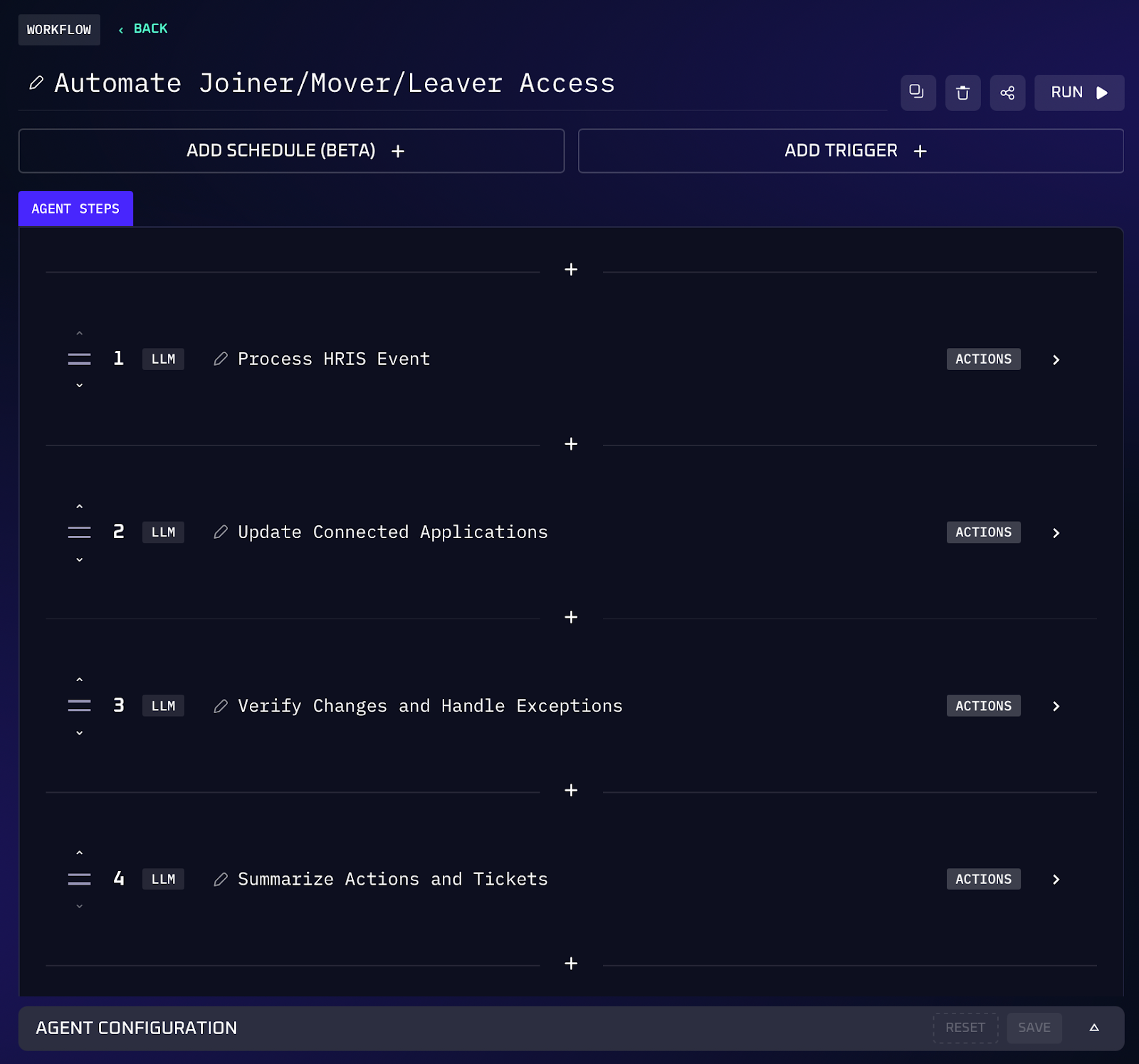
1. The AI agent monitors the HRIS for any user status change (new hire, role change, termination) or receives a prompt with the user’s details and event type.
2. It maps the user to the correct role, department, and groups based on HR data. The agent then creates or updates the user’s profile in the central directory (Okta or Azure AD), including assigning them to appropriate groups or roles.
3. For a joiner or mover, the agent provisions access across all connected applications. This could include creating an account in Google Workspace or Microsoft 365, granting access to Slack channels, adding the user to Jira projects, provisioning the appropriate GitHub team or repository access, enabling their Salesforce account, etc., according to their role.
4. If the event is a leaver (offboarding), the agent systematically disables or deletes the user’s accounts in all those connected systems. It ensures that no orphaned account remains active. This step includes removing any privileged roles the user held and reclaiming licenses.
5. The agent tracks success/failure of each provisioning step. If a step fails (e.g., an app API is unreachable) or there’s an inconsistency (user’s info doesn’t match an existing role), the agent logs the issue. It then automatically creates a Jira ticket summarizing the exception for IT to address manually.
Value of Automation
Automating JML processes means new hires get productive faster and leavers don’t linger with dangerous access. Instead of IT scrambling to create accounts across 5–10 systems on a start date (or forgetting one in the rush), everything is ready for the employee’s first day. When employees change roles, their access adjusts in real time, no more accumulating excess permissions from past positions. Crucially, automated offboarding eliminates orphaned accounts and security holes. Forgotten user accounts have been a persistent source of breaches for years, so terminating access immediately upon departure greatly reduces risk.
2. Privileged Access Review & Auto Remediation
“Who still has admin access?” is a question that often triggers tedious auditing and can lead to unpleasant surprises. In many organizations, users accumulate elevated permissions over time, maybe someone was given temporary admin rights which were never revoked, or an engineer changed teams but retained access to sensitive cloud resources.
Manually reviewing privileged accounts across dozens of systems is a slow, error prone process that might happen only once or twice a year. In the meantime, those excess privileges are a huge risk: a malicious insider or an external attacker who compromises an over privileged account can do outsized damage.
This workflow uses AI to hunt for and fix excessive privileges across your environment. The agent aggregates a roster of all users with privileged roles in identity systems, cloud accounts, and key SaaS apps. It then evaluates whether each privileged access is still justified or safe.
For instance, it detects 'standing privileges' violating Just-in-Time (JIT) access protocols, flags accounts that haven’t used admin rights in months, or identifies users with role mismatches. It identifies privileges that are overly broad (e.g. a service account that has global admin rights but only needs read access to one project). With that analysis, the AI produces a prioritized remediation plan.
Workflow Steps
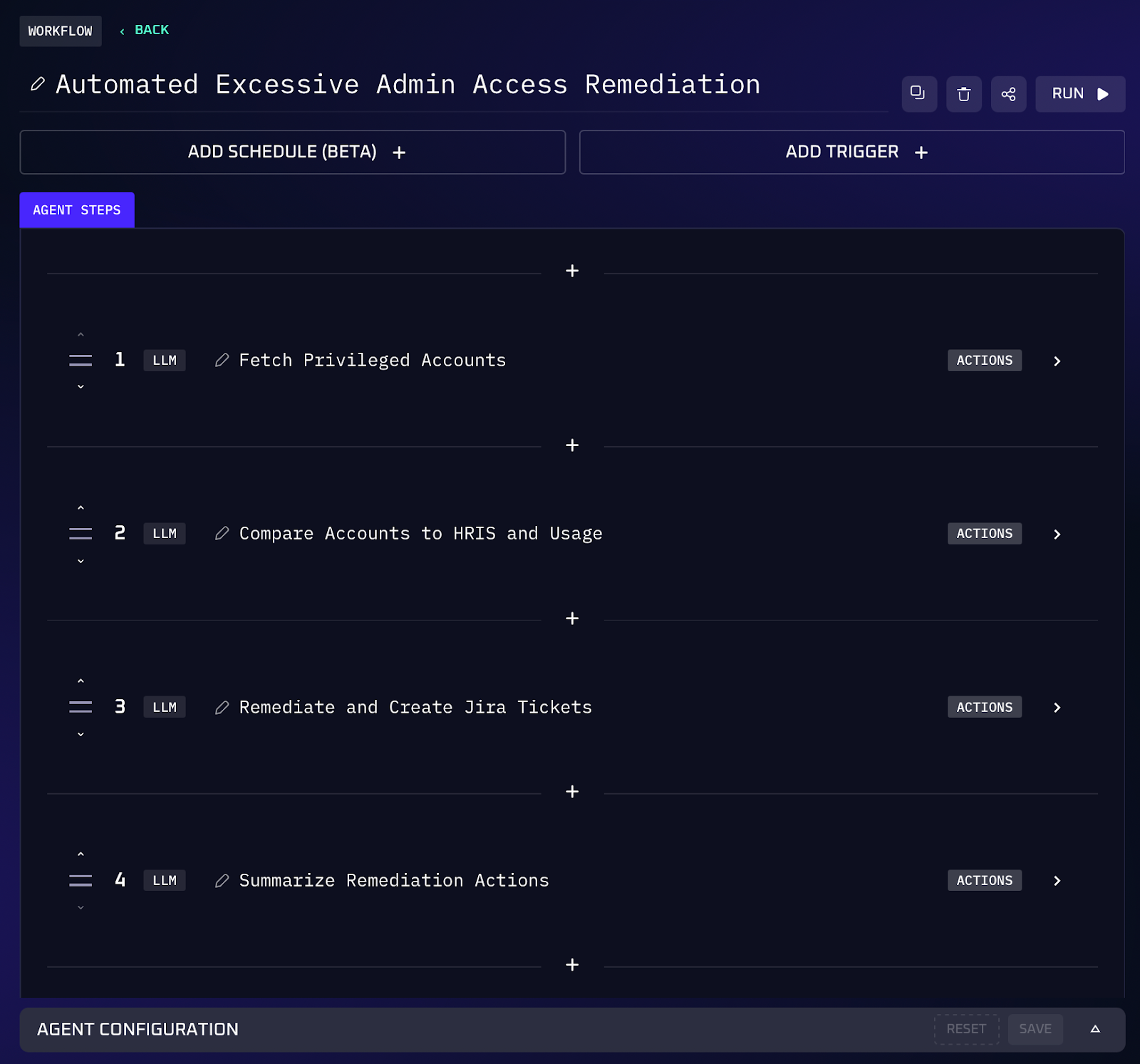
1. The AI agent connects to each relevant platform and compiles a comprehensive list of accounts with elevated permissions.
2. For each privileged account, the agent cross references usage and context to assess risk. It checks the last login or last activity date to find dormant admins. It looks at HR and team data to spot misaligned roles (e.g. a user in the Sales department still having AWS admin access from a previous DevOps role). It also flags accounts with excessive scope.
3. The agent then prioritizes which privileges pose the highest risk. Accounts belonging to former employees or contractors that somehow still exist with privileges would be top priority. The agent might rank issues by a risk score considering factors like privilege scope, inactivity duration, and sensitive systems involved.
4. For clearly unjustified privileges, the agent takes immediate action. This could mean removing a user from an admin group, revoking a cloud role assignment, or switching a user’s role from owner to read only in an app. Before making changes, the agent can ensure the account isn’t a critical service account or something that would cause disruption.
Value of Automation
Automating privileged access reviews closes one of the most dangerous gaps in security. Instead of waiting for the next quarterly review (that may be perfunctory), the organization now has a living, breathing system that enforces least privilege in real time. This means fewer toxic combinations of access and drastically lower chances of an insider abusing dormant creds or an attacker finding an unmonitored admin account. By focusing on actual usage data and context, the AI can often detect privilege creep better than static policies, ensuring someone who changed jobs last month isn’t still an admin in their old domain. The workload for security teams and auditors is also slashed: no more chasing down dozens of system owners for attestations or combing through spreadsheets of users.
3. Access Request Triage & Least Privilege Provisioning
Every IT or security team is familiar with the stream of access requests: “Can I get access to X application?” or “Add me to Y project folder.” These requests might come through an IT service portal, an email, a Slack message, or a Jira Service Management ticket. Manually triaging and fulfilling each request is time consuming and can lead to inconsistent decisions.
One common scenario is the permission delta problem, a user requests access to a resource, and in the interest of speed, an IT admin might clone another user’s access or add them to a high level group just to solve the immediate need, inadvertently over provisioning them.
This AI driven workflow automatically triages incoming access requests and fulfills them with least privilege. The agent listens for new requests and immediately evaluates them against your access policies and the user’s roles. It checks who the requestor is (verifying their identity and role via Okta/Azure AD or your directory) and what they’re asking for.
If the request is straightforward and compliant (e.g. a developer asking for access to a standard development tool that their role is allowed to have), the AI agent will automatically provision the access with the least privilege required. That means it won’t give more than necessary. If the request is unusual or violates policy, the agent will not auto approve it; instead, it will route the request for human review, complete with context.
Workflow Steps
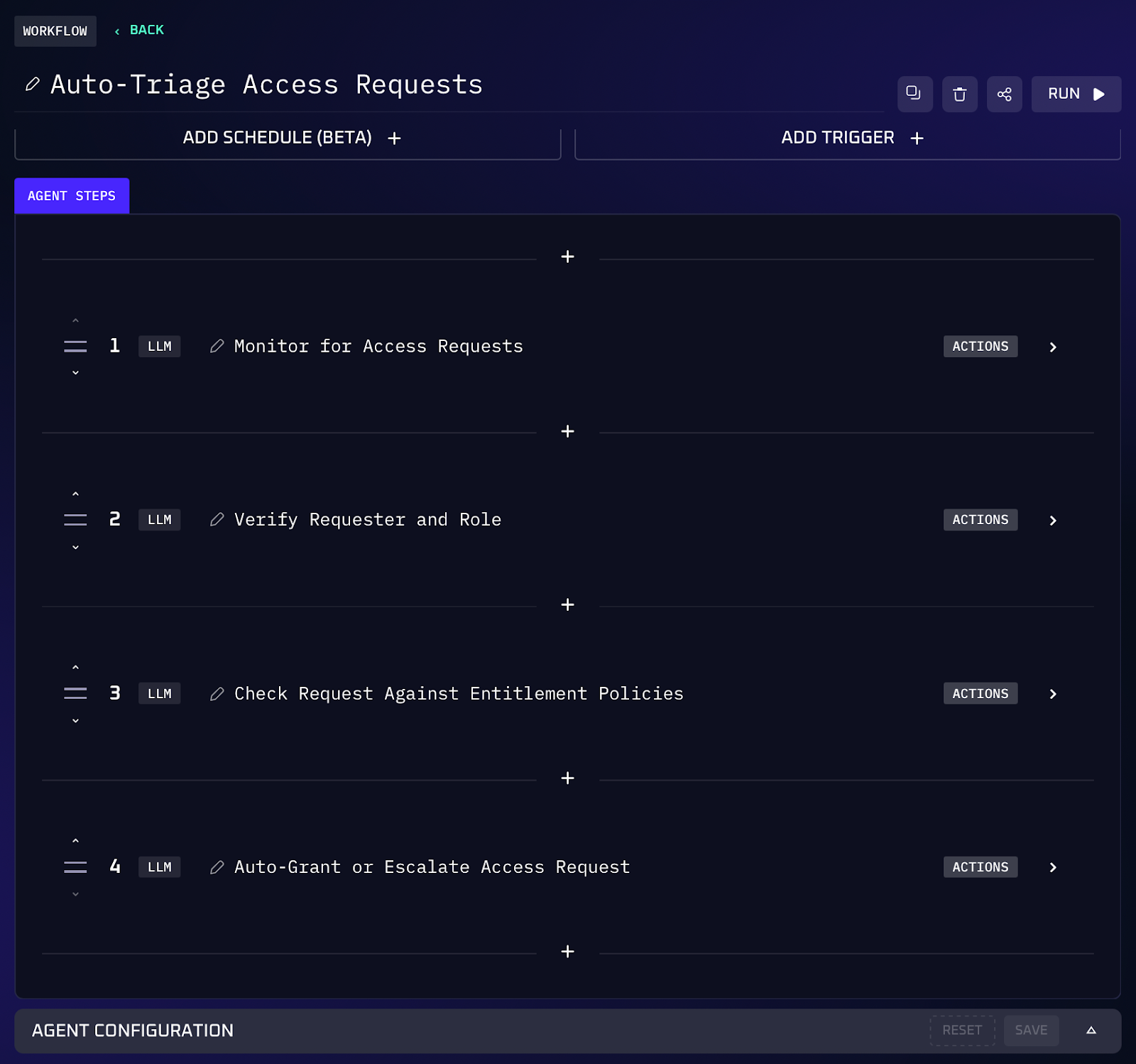
1. The AI agent connects to the channels where access requests appear. This could be a Slack or Teams channel where users post requests, an email inbox, or an ITSM queue in Jira Service Management or ServiceNow. The agent monitors for new requests and pulls in the details.
2. Upon capturing a request, the agent verifies the requester’s identity and role by looking them up in the identity provider (Okta/Azure AD). It gathers context like the user’s department, job title, and current group memberships. It also identifies the target system or resource being requested and the level of access needed.
3. The agent references predefined access policies or entitlements. Organizations often define which roles are allowed to access which resources. The AI evaluates these rules against Role-Based Access Control (RBAC) and Attribute-Based Access Control (ABAC) policies: Is user X allowed access by default? Does manager approval suffice, or is higher approval needed? It also checks if the access level requested is appropriate for their role, enforcing least privilege by default.
4. If the request meets policy (the user is eligible and the access is standard), the agent proceeds to provision access in a least privileged manner. This involves calling the target application or system’s API or using existing connectors: e.g., adding the user’s account to the relevant group or role that grants the minimal required access. If a new account is needed (for a system the user wasn’t on yet), it creates one with baseline permissions.
5. If the request is outside the norm; say the user isn’t automatically eligible or the access level is high risk, the agent pauses direct provisioning. Instead, it creates a Jira ticket or a ServiceNow ticket, populating it with all relevant details: the requester, the access requested, the justification they gave, and why it requires approval.
Value of Automation
By automating access request handling, organizations dramatically speed up a process that directly impacts employee productivity. Instead of waiting hours or days for someone to manually triage and fulfill a request, users get near instant access when it’s appropriate. This reduces downtime and frustration for employees who need access to do their jobs. For the security and IT teams, the benefit is equally large: a huge chunk of repetitive workload is offloaded. Considering that many large enterprises field thousands of access requests per week, automation can save the equivalent work of dozens of staff, allowing the team to focus on more strategic tasks. Moreover, the AI enforces consistency and least privilege. It will grant only the access that’s needed and in line with policy, whereas a rushed IT admin might accidentally over-provision just to resolve a ticket quickly.
4. Dormant & Orphaned Account Cleanup
Over time, any large organization accumulates user accounts that shouldn’t exist anymore: a contractor’s account that wasn’t deactivated after their contract ended, an employee who left last year but still has an active login in some third party tool, or even an active employee’s account that hasn’t been used in months (which might indicate they changed responsibilities or the account is simply unnecessary).
This AI workflow sniffs out dormant and orphaned accounts across your identity platforms and SaaS apps, then systematically removes or disables them. The agent routinely scans your primary directory (Okta or Azure AD) as well as connected apps like Google Workspace/M365, Slack, Jira, GitHub, Salesforce, and others for accounts that meet cleanup criteria.
Those criteria can include: accounts with no logins in the last 60 or 90 days (dormant users), accounts not tied to any active employee in the HRIS (or whose HR record shows they departed), or accounts past a set end date (e.g. contractor accounts that should have expired).
The AI consolidates these findings into a ranked list, prioritizing accounts that pose the highest risk. It then takes action: the most risky or obviously unused accounts can be automatically disabled or removed by the agent, while any ambiguous cases are flagged for review via Jira tickets.
Workflow Steps
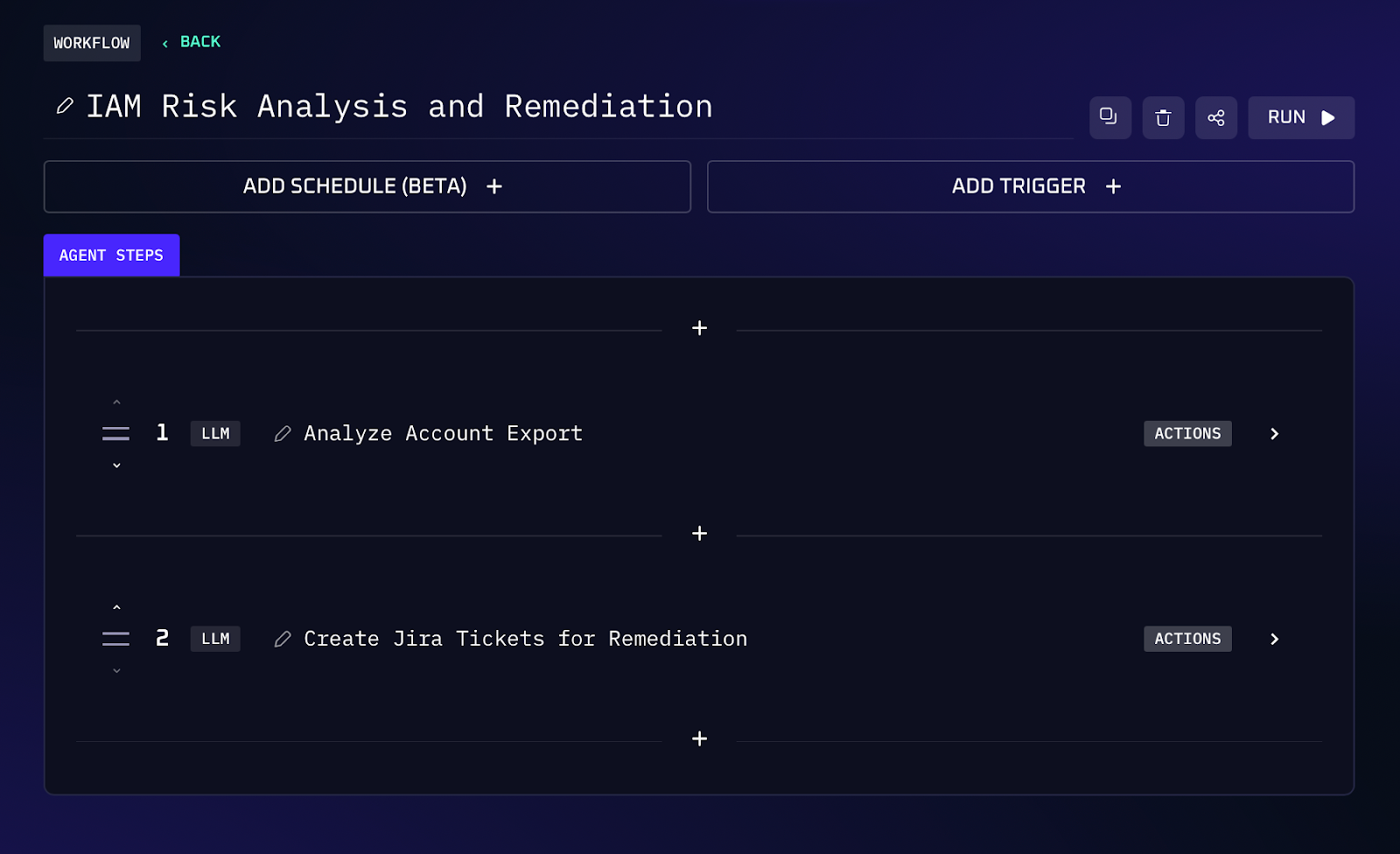
1. The AI agent aggregates user lists from user input and/or each connected application. It pulls data like usernames, last login timestamp, account status (active/disabled), roles/permissions, and any metadata (like department or manager if available). It also pulls data from the HRIS of currently active employees/contractors for cross reference.
2. The agent compares these datasets to identify accounts that likely should not exist or need disabling. Orphaned accounts are those that have no corresponding active user in the HR system. The agent flags all such accounts, also noting their privileges.
3. Each flagged account is scored or ranked by risk. Criteria could include: how long it’s been inactive (longer = more likely truly abandoned), what level of access it has (higher privilege = higher risk if compromised), and whether it’s orphaned (no HR record = likely needs immediate attention). The agent produces a prioritized list so that the most dangerous accounts are handled first.
4. For accounts that meet certain safe criteria for automatic action (policy-defined), the agent goes ahead and disables or deletes them. Often, policy might say: any account inactive >180 days or any account not tied to an active employee should be disabled immediately.
5. For accounts that are flagged but not auto-removed, the agent creates Jira tickets. Each ticket describes the account and why it’s flagged. This way, nothing is forgotten, every dormant account is either handled by the AI or put in a human’s queue to decide.
Value of Automation
Regularly purging dormant and orphaned accounts is like closing backdoors before attackers find them. By entrusting this to an AI agent, you ensure it actually happens consistently, instead of being a yearly scramble or an overlooked task. The security gains are significant: every orphan account eliminated is one less credential that could be misused in a breach. Disabling unused accounts also reduces permission creep because people who have shifted roles won’t retain access they’re not actively using. From a compliance standpoint, it automates evidence collection for SOC 2 Type II and ISO 27001 audits, proving that access revocation occurs within the mandatory window (often 24 hours). The cost savings shouldn’t be overlooked either: companies often pay for SaaS licenses long after a user’s departure.
5. MFA & Conditional Access Drift Monitor
Multi-factor authentication (MFA) and conditional access policies are among the strongest tools to secure accounts. Microsoft research shows that MFA can block over 99% of account compromise attacks. Most organizations have (rightly) enabled MFA for their apps and set up conditional access rules to enforce where, when, and how users can log in. However, maintaining consistent MFA enforcement across a sprawling IT environment is challenging.
Policies can drift over time: an admin might create an exception rule to troubleshoot an issue and forget to remove it, a new SaaS app might be onboarded without MFA enforcement, or someone disables a policy by mistake.
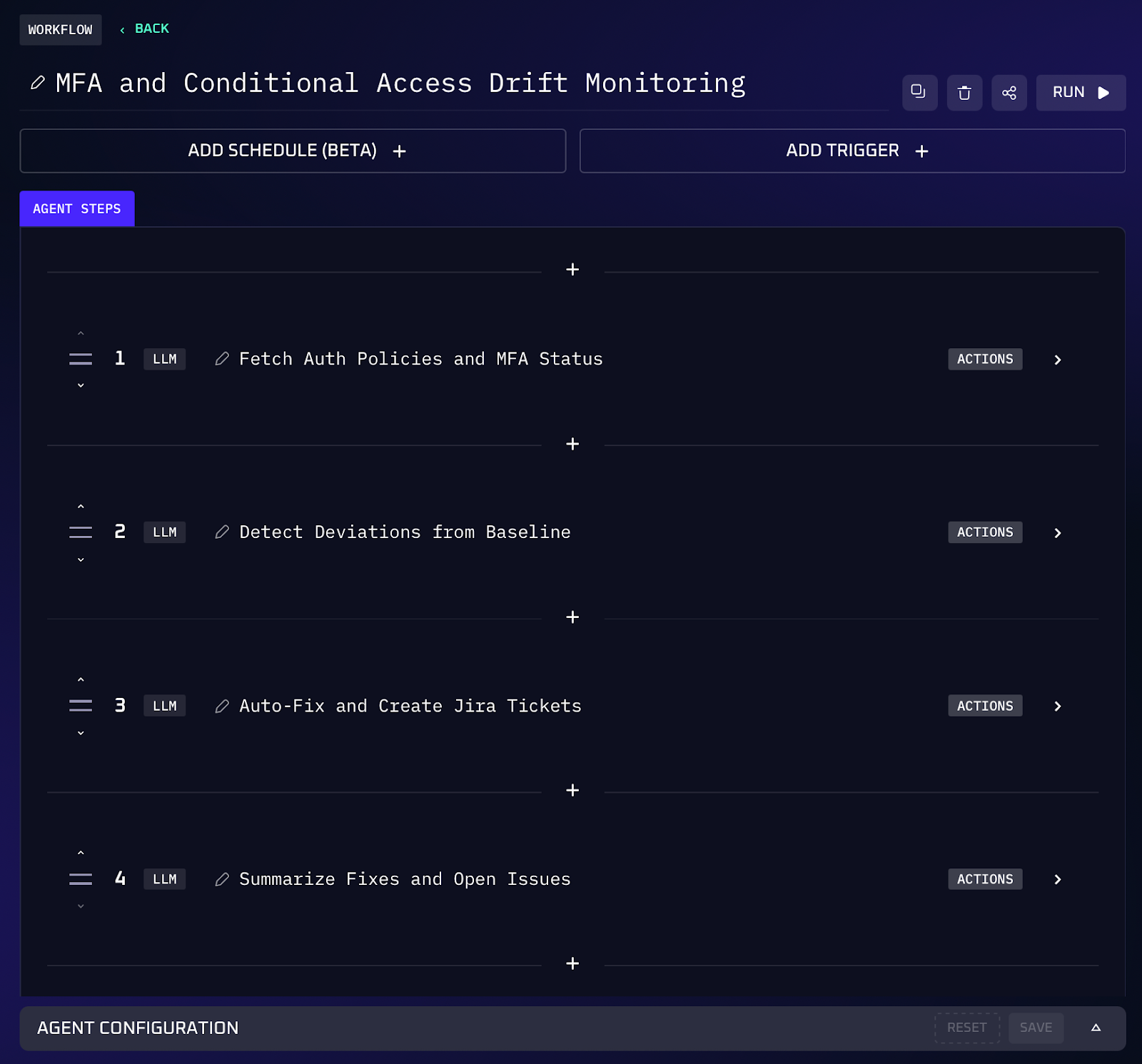
This AI workflow audits and enforces your MFA and conditional access configurations across identity providers and key applications, catching any misconfigurations or deviations before they lead to trouble.
The agent reviews configurations in Okta and Microsoft Entra ID to enforce phishing-resistant MFA (FIDO2/WebAuthn). It scans for drift indicators: policies that are disabled or in report only mode, accounts or groups that are marked as exceptions to MFA requirements, newly added cloud apps that don’t have any conditional access applied, or MFA being turned off for a subset of users. Upon detecting an issue, the agent prioritizes them by risk. It then auto-remediates what it safely can.
Workflow Steps
1. The AI agent pulls the current authentication policy configurations from central identity systems and apps.
2. The agent analyzes this map to find any deviations from best practices or defined security policy. It might also look for new bypass rules like someone excluding themselves from MFA or a “remember device for 60 days” setting that’s overly lenient.
3. Each issue identified is evaluated for severity. A global setting that allows users to skip MFA in certain scenarios would be serious. An individual user without MFA might be high or medium depending on their role. The agent ranks findings so that attention focuses on the most dangerous first - often, anything affecting many users or high privilege users (like admins) ranks highest.
4. For the highest risk and straightforward issues, the agent takes direct action to remediate. This could include enabling MFA where it was off. For instance, if it finds certain admin accounts with MFA disabled, it will flip them to required (and possibly trigger a reset so those users must set up MFA on next login).
Value of Automation
This workflow acts as a safety net that upholds one of your most important defenses: MFA. The value cannot be overstated, with 99% of account breaches preventable by MFA, ensuring it’s actually in place everywhere is paramount. By letting an AI agent police your MFA and access policies, you drastically reduce the window of exposure if something slips. If an admin mistakenly disables a policy or a new app comes online without the right protections, the agent will catch it and fix it (or flag it) potentially within minutes or hours, rather than it going unnoticed for months. This means your team isn’t reliant on quarterly audits or the hope that someone will notice; you have an automated sentinel. Beyond security, it saves the team countless hours sifting through settings pages or running reports to verify compliance.
Take Your Next Steps With Kindo
The five workflows above show how AI powered automation can elevate IAM from a tedious, error prone set of tasks to a proactive discipline. By delegating the heavy lifting to an intelligent agent, security teams move from reactive firefighting to continuous oversight.
Routine work like creating accounts or reviewing privileges happens in the background, faster and more consistently than any manual effort. This not only closes security gaps (fewer orphaned accounts, least privilege enforced, MFA everywhere) but also frees up your team to focus on strategic initiatives and higher level risk management.
If you’re looking to modernize your identity and access management, exploring Kindo’s AI powered workflows firsthand is a great next step. A demo can show how these IAM automations plug into your environment and tools with minimal friction. With the right Kindo workflows in place, you’ll be well on your way to a more autonomous, efficient, and resilient access management program for your organization.